Microsoft Copilot governance comes down to three things: remediate oversharing before Copilot can surface it, set enforceable guardrails so new content doesn’t create fresh exposure, and turn on auditing so you can prove any of that actually happened. Skip one, and the other two won’t save you.
If Copilot is already live or about to be, you have a short window to reduce exposure before it starts indexing everything users can technically reach. Microsoft’s own deployment guidance frames this exact structure: remediation, guardrails, and regulation.
Here’s what to do in the next 48 to 72 hours:
- Turn on Restricted Content Discovery in SharePoint Advanced Management for any site you haven’t reviewed yet.
- Add Copilot-specific exclusions to your Microsoft Purview DLP policies so sensitive content can’t be pulled into grounding responses.
- Pull a list of your top 10 highest-risk SharePoint sites by permission sprawl and start there, not everywhere at once.
Microsoft Purview and SharePoint Advanced Management are your two primary control surfaces for all of this. Everything downstream, labeling, DLP, auditing, insider risk, runs through one or both.
Key Takeaways
Effective Microsoft Copilot governance requires remediating existing oversharing, enforcing secure defaults at content creation, and verifying every control through audit logs and DSPM activity data.
| Point | Details |
|---|---|
| Fix oversharing first | Use DSPM and SharePoint Advanced Management to find and remediate high-risk sites before broad Copilot rollout. |
| Keep labels simple | Cap your sensitivity label taxonomy at five parent labels and five sublabels to keep enforcement consistent. |
| Verify, don’t assume | Confirm every policy worked using the unified audit log and Purview’s DSPM activity explorer, not configuration screens alone. |
| Attest on a cadence | Require container owner re-attestation roughly every six months, with lifecycle deletion for unowned containers. |
| Get a governance roadmap | tekRESCUE AI’s AI Profit and Growth Assessment maps oversharing risk and rollout sequencing specific to your environment. |
Table of Contents
- The Three Pillars of Microsoft Copilot Governance
- How Do You Find and Fix Overshared Content Before Copilot Surfaces It?
- Setting Secure Defaults So New Content Doesn’t Repeat the Problem
- Which Purview Features Actually Matter for Copilot Governance
- Licensing, Roles, and Access You Need Before You Configure Anything
- How Do You Verify That Your Copilot Controls Are Actually Working?
- Turning Controls Into Habits: Attestation, Training, and Support
- Data Privacy and Residency: What Actually Changes With Copilot
- Making Copilot Governance Part of Your Existing Compliance Program
- Responding When Copilot Surfaces or Generates Something It Shouldn’t
- Why AI Model Updates Change Your Governance Requirements
- Building a Governance Framework That Survives Beyond Launch
- What I’ve Learned Watching Copilot Rollouts Succeed and Stall
- How tekRESCUE AI Helps You Govern Copilot Without Guessing
- Sources
The Three Pillars of Microsoft Copilot Governance
Microsoft’s Copilot Control System organizes governance into three pillars: security and governance, management controls, and measurement and reporting. That framework isn’t just a marketing diagram. It maps directly onto who in your organization needs to own what.
- Security and governance. This is the data protection layer: sensitivity labels, DLP, DSPM for AI, access reviews. It answers “can Copilot see something it shouldn’t?” Your information security team or a data governance lead typically owns this. The tools are almost entirely inside Microsoft Purview, with SharePoint Advanced Management handling the site and permission side.
- Management controls. This covers licensing, admin roles, agent lifecycle, and connector permissions. It answers “who can configure, extend, or deploy Copilot capabilities?” IT operations and a Microsoft 365 admin typically own this, with Copilot Studio governance sitting alongside it for custom agent builds.
- Measurement and reporting. This is verification: audit logs, DSPM activity explorer, adoption reporting. It answers “did our controls actually work, and can we prove it?” Compliance and security operations should own this jointly, because it feeds both operational dashboards and regulatory audits.
The mistake most organizations make is treating these as sequential phases instead of parallel ownership tracks. Teams that wait to build measurement until after security controls are “done” end up with no baseline to compare against. Start measurement in week one, even if all it captures is your current oversharing exposure.
Each pillar also needs an escalation path back to the other two. A DLP policy that flags risky Copilot prompts (security) is only useful if someone in management controls can act on the alert and someone in measurement can confirm the fix held. Siloed ownership is why governance frameworks that look complete on paper fail in practice.
How Do You Find and Fix Overshared Content Before Copilot Surfaces It?
Oversharing is the single biggest risk in any Microsoft 365 Copilot security review, and it’s almost never intentional. It’s the result of years of “just share it with everyone to be safe” decisions that nobody ever revisited. Copilot doesn’t create new access. It just makes existing overexposure instantly searchable in natural language, which is exactly why it feels new even though the underlying permissions problem has been there for years.
Start with a content risk assessment using Data Security Posture Management (DSPM) for AI and SharePoint Advanced Management together. DSPM shows you where sensitive data sits and how it’s actually being accessed by AI tools, while SharePoint Advanced Management gives you the site inventory and permission detail to act on it.
Immediate protections while you remediate:
- Enable Restricted Content Discovery on any site with broad or unclear permissions, which excludes it from Copilot’s grounding results without disrupting normal SharePoint access.
- Add Purview DLP exclusions specifically for Copilot grounding on your most sensitive libraries, separate from your general DLP rules.
- Audit and restrict “Anyone” sharing links across the tenant. These are the single most common source of unintended Copilot exposure because they don’t require the recipient to authenticate.
- Run DSPM’s oversharing assessment to get a ranked list of sites by exposure risk instead of guessing.
Once you’ve stopped the bleeding, remediate for real. Assign an accountable owner to every site and workspace, no exceptions. Fix permissions that don’t match actual business need. Apply container labels so the site inherits the right protection level automatically going forward. Then run a site access review, ideally quarterly for high-risk sites, to catch permission creep before it becomes an incident.
Validate the fix using Purview’s auditing tools, not by assuming the change worked. Pull the audit log for the site after remediation and confirm access patterns actually changed.
Pro Tip: Don’t try to remediate every site at once. Rank sites by a simple risk score: sensitivity of content times breadth of access. Fix the top 10 percent first. That’s usually where 80 percent of your real exposure lives.
One insight worth internalizing here: Microsoft’s own guidance recommends allowing self-service workspace creation while enforcing container labeling and automated exception detection, rather than locking everything down centrally. Total lockdown kills adoption and pushes users toward shadow IT workarounds. Controlled self-service with automated checks scales better.
Setting Secure Defaults So New Content Doesn’t Repeat the Problem
Remediation fixes yesterday’s mess. Guardrails stop tomorrow’s. The goal is to make the secure choice the default choice, so users don’t have to remember to protect anything.
Start with container-based default labels at provisioning. Every new SharePoint site, Teams workspace, or Viva Engage community should inherit a sensitivity label the moment it’s created, before a single file gets uploaded. This is exactly what Microsoft’s internal IT team enforces, requiring every container to carry an assigned label from day one.
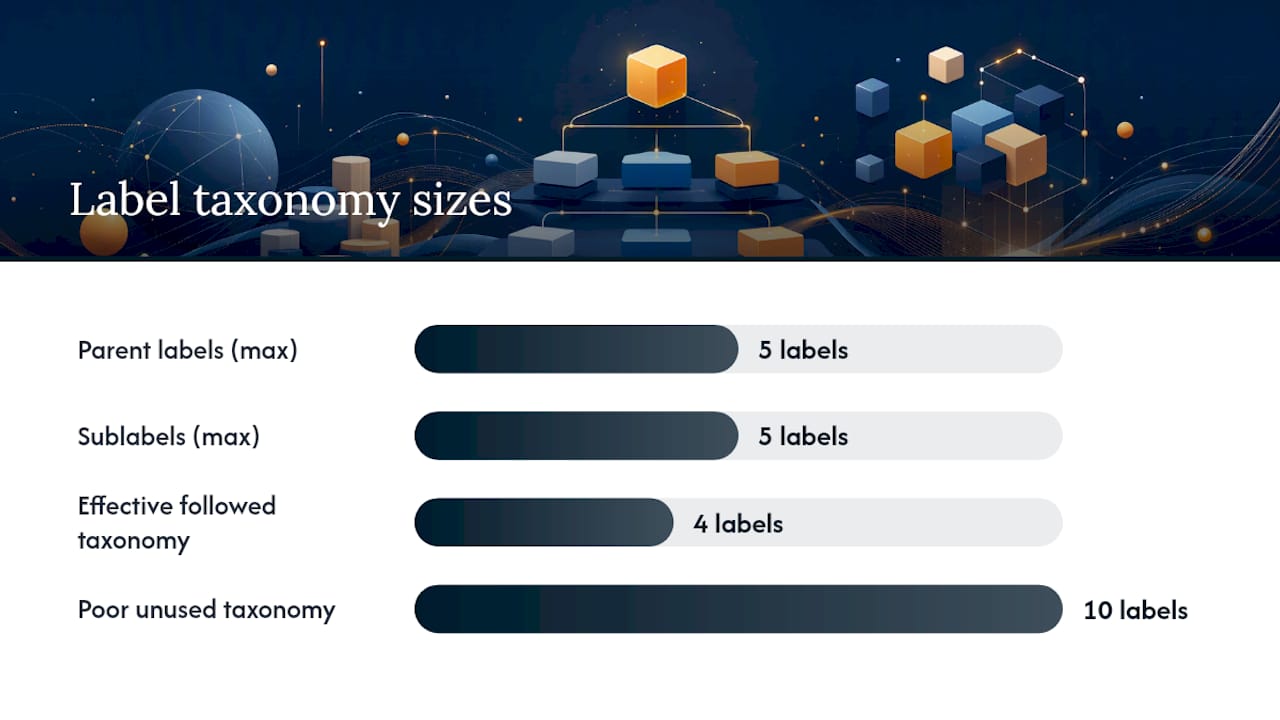
Keep your label taxonomy small. Microsoft’s internal recommendation caps it at a maximum of five parent labels and five sublabels. Beyond that, users start guessing, applying labels inconsistently, or ignoring labeling altogether. A ten-label taxonomy that nobody follows correctly protects less than a four-label taxonomy that everyone uses right.
Guardrails worth setting before broad rollout:
- Auto-labeling rules for common sensitive data patterns (financial records, PII, contracts) so protection doesn’t depend on a user remembering to click a dropdown.
- DLP policies that specifically evaluate Copilot prompts and grounding data, not just outbound email and file sharing.
- Default sharing link type set to company-shareable rather than “Anyone,” changing the default behavior for every new share going forward.
- Site provisioning policies that block public-by-default site creation entirely.
Sensitivity labels carry a mechanic worth understanding directly: the EXTRACT usage right. When a label restricts EXTRACT, Copilot cannot pull that content into a generated response, even if the user technically has view access. That distinction matters because VIEW and EXTRACT are separate permissions, and a label that only restricts editing won’t stop Copilot from summarizing or quoting the content. If you have documents that should never appear in an AI-generated response regardless of who’s asking, the label policy needs to explicitly block EXTRACT, not just editing rights.
Pro Tip: Test your label policy against a real Copilot prompt before rolling it out tenant-wide. Ask Copilot a question you know should be blocked by a specific label. If it answers anyway, your label configuration has a gap, and you want to find that in testing, not in an audit.
Which Purview Features Actually Matter for Copilot Governance
Microsoft Purview is the backbone of Microsoft copilot compliance work, and it covers more ground than most IT teams initially realize. Auditing, classification, sensitivity labels, encryption, DLP, insider risk management, communication compliance, eDiscovery, and Compliance Manager all extend to Copilot interactions specifically, not just to files at rest.
DSPM for AI is where most teams should start. It runs data risk assessments specific to AI usage and deploys one-click policies, including “Protect items with sensitivity labels from Microsoft 365 Copilot and agent processing” and “Detect risky interactions in AI apps,” according to Microsoft’s DSPM documentation. These aren’t theoretical settings. They’re deployable in an afternoon and immediately reduce exposure.
| Purview capability | What it governs for Copilot |
|---|---|
| DSPM for AI | Data risk assessment and one-click remediation for AI usage patterns |
| Auditing | Captures Copilot prompts, responses, and referenced files in the unified audit log |
| Classification and sensitivity labels | Determines what Copilot can view versus extract into a response |
| Data loss prevention | Blocks sensitive content from Copilot grounding and prompt processing |
| Insider risk management | Flags anomalous Copilot usage patterns tied to user risk indicators |
| eDiscovery | Preserves and searches Copilot interactions for legal and investigative holds |
Auditing deserves special attention because it’s where verification actually happens. Copilot prompts, responses, and referenced-file events land in the unified audit log, and these feed into Purview’s activity explorer for AI. If you’re ever asked “did anyone use Copilot to access this file,” this is where the answer lives.
A limitation worth knowing before you build your policy around container labels alone: container inheritance doesn’t always behave the way teams expect. A site-level label sets a default, but files with their own explicit label retain it even if the site label changes later. Don’t assume relabeling a site retroactively fixes every file inside it. For DLP specifics, teams building out Copilot exclusion rules often benefit from general data loss prevention configuration guidance alongside the Purview-specific documentation, since the underlying DLP logic (conditions, exceptions, incident workflows) carries over.
Licensing, Roles, and Access You Need Before You Configure Anything
None of the controls above work if the right people don’t have the right roles, and the right licenses aren’t provisioned. This is the least exciting part of Copilot security governance and the part most likely to quietly block your rollout for weeks.
- Confirm your licensing tier unlocks the Purview features you need. Certain DSPM for AI capabilities and advanced DLP features require specific Microsoft 365 or Purview add-on licensing. Check this before you plan a rollout timeline around a feature you don’t actually have access to yet.
- Assign Purview admin roles deliberately, not broadly. Compliance administrator, data security administrator, and eDiscovery manager are distinct roles with distinct scopes. Don’t hand out Global Administrator as a shortcut.
- Provision SharePoint Advanced Management access separately. This often sits with a different admin than core Purview roles, and it’s easy to forget during initial rollout planning.
- Set up Copilot Studio governance roles if your organization is building custom agents. Agent creation, publishing, and connector permissions need their own approval workflow, distinct from standard Copilot licensing.
- Build a pre-deployment checklist that assigns every role by name, not by title. “The security team” isn’t an owner. A specific person with a specific role assignment is.
Agent and connector lifecycle management deserves its own line item here. Every custom agent built in Copilot Studio and every third-party connector is a new potential data path, and it needs the same review rigor as a new SharePoint site: an owner, a documented purpose, and a periodic access review.
How Do You Verify That Your Copilot Controls Are Actually Working?
Configuration without verification is just hope wearing a policy document. The unified audit log and Purview’s DSPM activity explorer are where Copilot prompts, responses, and referenced-file events actually surface, and they’re the only reliable way to confirm a policy did what you intended.
Set up alerts and reports for the events that matter most:
- Oversharing incidents: new files or sites that suddenly show broad access patterns.
- Label downgrades: sensitivity labels changed to a lower protection tier, which can indicate either legitimate reclassification or a workaround.
- Broad-access link creation: “Anyone” links generated after your default policy change, which flags either a misconfiguration or a manual override.
For organizations that need custom detection logic beyond what Purview’s built-in reports offer, Microsoft Graph Data Connect paired with Azure Synapse lets you build tailored remediation dashboards pulling directly from audit and activity data. This is worth the engineering investment once you’re past initial rollout and into steady-state operations, particularly for large tenants where manual review of standard reports doesn’t scale.
A few KPIs worth tracking from week one: oversharing incidents identified per month, mean time to remediate a flagged site, and attestation compliance rate across container owners. None of these require exotic tooling. They require someone actually pulling the report on a schedule.
Statistic Callout: Microsoft’s own internal deployment enforces a six-month re-attestation cycle for every container owner, with automatic deletion for unlabeled or unowned containers that fail attestation, according to Microsoft’s internal Copilot governance approach. If Microsoft’s own IT organization treats stale ownership as a deletion trigger rather than a warning, that’s a strong signal for how seriously to take attestation lapses in your own tenant.
Turning Controls Into Habits: Attestation, Training, and Support
Technical controls decay without operational reinforcement. A perfectly configured label policy is worthless six months later if nobody re-attests ownership and half your containers have drifted back to “everyone can edit.”
- Design an attestation policy with a defined cadence. A re-attestation cycle approximately every six months, as practiced internally by Microsoft, gives container owners a predictable rhythm without becoming a monthly nuisance.
- Prioritize training on three things: labeling, safe prompting, and escalation. Users need to know what a label actually restricts, what kinds of prompts risk exposing sensitive data, and exactly who to contact when something looks wrong.
- Build a shift-left support model with champions embedded in business units. A trained champion in finance or legal catches labeling mistakes and answers basic Copilot questions faster than a helpdesk ticket ever will, and it keeps your central IT team from drowning in repetitive requests.
- Map stakeholders explicitly across security, compliance, IT operations, and business unit leadership. Governance that lives only in IT fails the moment a business unit finds a workaround nobody documented.
The training piece matters more than most rollout plans give it credit for. A user who understands why a document is labeled Confidential and what that means for Copilot’s ability to surface it in someone else’s search is a user who won’t try to route around the label. A user who just sees “annoying restriction” will find a workaround within a week.
Data Privacy and Residency: What Actually Changes With Copilot
Copilot doesn’t move your data outside your existing Microsoft 365 trust boundary. It respects sensitivity labels, permissions, and usage rights already in place, and it will not use your organization’s content to train foundation models or share it across tenants.
That said, “respects existing controls” is not the same as “requires no new configuration.” Data residency for Copilot follows the same tenant and region settings you’ve already established for Microsoft 365, but grounding data, the content Copilot pulls in to generate a response, still flows through your existing DLP and label rules in real time. If those rules have gaps, Copilot exposes the gap faster than a human searching manually would.
For regulated industries, this means privacy review needs to explicitly test Copilot behavior against your existing compliance obligations, not just assume Microsoft 365’s baseline compliance certifications automatically extend to every Copilot use case. If you’re subject to HIPAA, GDPR, or sector-specific residency rules, confirm your legal and compliance teams have reviewed how Copilot’s processing interacts with those obligations specifically, rather than inheriting a general Microsoft 365 compliance posture as a proxy.
The practical takeaway: don’t build a parallel privacy framework for Copilot. Extend and stress-test the one you already have. Copilot’s architecture is designed to inherit existing data protection controls rather than requiring a separate compliance layer, which means your existing labels and permissions are doing more work than most teams initially assume.
Making Copilot Governance Part of Your Existing Compliance Program
The biggest structural mistake we see is treating Copilot governance as a separate initiative from existing Microsoft 365 security and compliance operations. It isn’t separate. It’s an extension.
Your existing DLP policies, sensitivity label taxonomy, insider risk management program, and communication compliance rules all apply to Copilot interactions without requiring a rebuilt framework. What you need is integration, not duplication: add Copilot-specific conditions to existing DLP rules rather than building a new policy set from scratch, and extend your insider risk indicators to include unusual Copilot query patterns alongside the file access and email indicators you already track.
Compliance Manager is worth folding in here too. If you’re already using it to track regulatory assessments and control mappings, add Copilot-specific controls to your existing assessment templates instead of running a separate audit. This keeps your compliance evidence in one place and avoids the reporting fragmentation that happens when AI governance gets treated as its own silo.
The practical benefit of integration over duplication is speed. A security operations team that already knows how to read Purview alerts doesn’t need retraining to read Copilot-specific alerts if you’ve built them into the same dashboards and escalation paths. Separate systems mean separate training, separate response playbooks, and separate blind spots.
Responding When Copilot Surfaces or Generates Something It Shouldn’t
Incidents will happen, even with strong guardrails, because Copilot’s core function is surfacing content based on permissions that were often set years before anyone thought an AI assistant would read them.

When a Copilot-related data exposure occurs, whether it’s a user discovering sensitive content they shouldn’t have access to, or Copilot generating a response that includes information it shouldn’t have surfaced, your response should follow the same incident response discipline you already apply to other data security events, with a few Copilot-specific steps added.
First, use the unified audit log and DSPM activity explorer to reconstruct exactly what was accessed, when, and through what prompt. This is your evidence trail. Second, determine whether the root cause is a permissions gap (the underlying oversharing problem Copilot exposed) or a label/DLP configuration gap (a control that should have blocked the response but didn’t). Third, remediate the root cause immediately, not just the symptom. Revoking a user’s access after an incident doesn’t fix the site-level permission issue that caused it.
Insider risk management and communication compliance policies within Purview can flag anomalous Copilot usage patterns before they become full incidents, catching unusual query volume or attempts to probe for restricted content. Build these into your standard insider risk indicators rather than treating Copilot misuse as a category requiring entirely separate detection logic.
Document every incident, however minor, in the same tracking system you use for other security events. A pattern of small Copilot exposure incidents across similar site types is a strong signal that your labeling defaults, not individual user behavior, are the actual problem.
Why AI Model Updates Change Your Governance Requirements
Copilot’s underlying models change on a schedule you don’t control, and every update carries the potential to alter behavior in ways your existing controls didn’t anticipate. This is the part of copilot security governance that’s easiest to overlook because it doesn’t feel like a discrete task the way labeling or licensing does.
Model updates can change how Copilot interprets ambiguous prompts, what it considers relevant grounding content, or how aggressively it summarizes versus quotes source material. A label configuration that reliably blocked EXTRACT rights under one model version isn’t guaranteed to behave identically after an update, particularly if Microsoft adjusts how grounding retrieval works.
The practical response isn’t paranoia. It’s a recurring review cadence. Treat Copilot model updates the way you’d treat a major software patch to any other enterprise system: worth a regression check against your critical controls, not a full re-architecture. After significant updates, re-run your test prompts against labeled content you know should be blocked, and confirm DLP exclusions still fire as expected.
Subscribe to Microsoft’s admin center message center for Copilot and Purview updates specifically, since that’s where behavioral changes tied to model updates typically get flagged before they hit general release. Build a lightweight quarterly check into your measurement pillar: pick five previously validated test cases and re-run them. If any fail, you’ve caught a drift before an audit or an incident did.
Building a Governance Framework That Survives Beyond Launch
A governance framework that only covers launch day is not a framework. It’s a checklist. Real Copilot governance needs a lifecycle: policies that get reviewed, updated, and retired on a schedule, not written once and forgotten.
Start with a documented policy set covering each of the three pillars: security and governance, management controls, and measurement and reporting. Assign a named owner and a review cadence to every policy, not just the technical controls. A label taxonomy that hasn’t been reviewed in two years is as much a governance failure as a missing DLP rule.
Build in a formal review trigger tied to major events: a new Copilot capability release, a significant model update, an acquisition that brings in new tenants or content, or a regulatory change affecting your industry. Reactive reviews triggered by these events catch drift that a purely calendar-based review schedule might miss.
Lifecycle management also means having an honest retirement path for controls that no longer serve their purpose. If a guardrail is generating more false positives than genuine risk reduction, revisit it rather than letting it erode user trust in the whole governance program. Governance frameworks that feel punitive get worked around. Frameworks that feel proportionate get followed.
What I’ve Learned Watching Copilot Rollouts Succeed and Stall
The organizations that get Copilot governance right aren’t the ones with the strictest defaults. They’re the ones that know exactly where to be strict and where to loosen up. A pilot group testing Copilot Studio agents on non-sensitive workflows doesn’t need the same lockdown as your finance team’s SharePoint sites, and treating them identically just kills pilot enthusiasm without reducing real risk.
The label taxonomy discipline matters more than almost anything else I see teams skip. Five parent labels, enforced consistently, beats fifteen labels nobody applies correctly. That’s not a preference. It’s what happens when users are asked to make a judgment call under time pressure.
When you present governance ROI to leadership, don’t lead with risk avoided. Lead with adoption enabled. The pitch that lands is “these controls are what let us turn Copilot on for everyone, not just the risk we prevented.”
— Randy Bryan
How tekRESCUE AI Helps You Govern Copilot Without Guessing
tekRESCUE AI built its approach around one idea: AI adoption and cybersecurity aren’t separate projects, they’re the same project. That’s the gap most Copilot rollouts fall into. IT teams either lock everything down and kill adoption, or they enable everything and inherit years of oversharing debt they didn’t know they had.
The AI Profit and Growth Assessment is built on 30 years of IT and cybersecurity experience, and it maps exactly onto the governance gaps this guide walks through: where your oversharing risk actually sits, which Purview and SharePoint Advanced Management controls matter most for your environment, and what a realistic rollout sequence looks like for your team’s actual bandwidth. If your internal team already has the skill set to run this in house, build it there. If you need a partner who treats AI security as inseparable from AI strategy, that’s exactly the role tekRESCUE AI plays.
Start with the AI Profit and Growth Assessment to get a governance roadmap built around your actual environment, not a generic checklist.
Sources
- Secure and govern Microsoft 365 Copilot (foundational deployment guidance)
- How we’re tackling Microsoft 365 Copilot governance internally at Microsoft